Markdown to PDF: How to Generate Professional PDFs with md-to.com for Free
Markdown is great for writing, but when it’s time to deliver, you often need a PDF. Technical proposals, project reports, resumes, even homework assignments — Markdown is the best format for writing, but eventually you need to hand someone a PDF file (they might not have a Markdown editor, and they certainly don’t want to read raw .md source code). PDF is the universal delivery format: fixed layout, cross-platform, print-friendly.
The question is, how do you elegantly convert Markdown to PDF? LaTeX is too heavy, Pandoc’s command line is too complex, and online tools raise privacy concerns. Good news: MD TO’s Markdown to PDF feature takes just 3 steps — free, online, all conversion happens locally in your browser, and the resulting PDF looks great.
3 Steps to Convert Markdown to PDF
Step 1: Enter Your Markdown
Open md-to.com/markdown-to-pdf/ and paste your Markdown content into the left-side editor (you can also drag and drop a .md file). The right side shows a live preview.
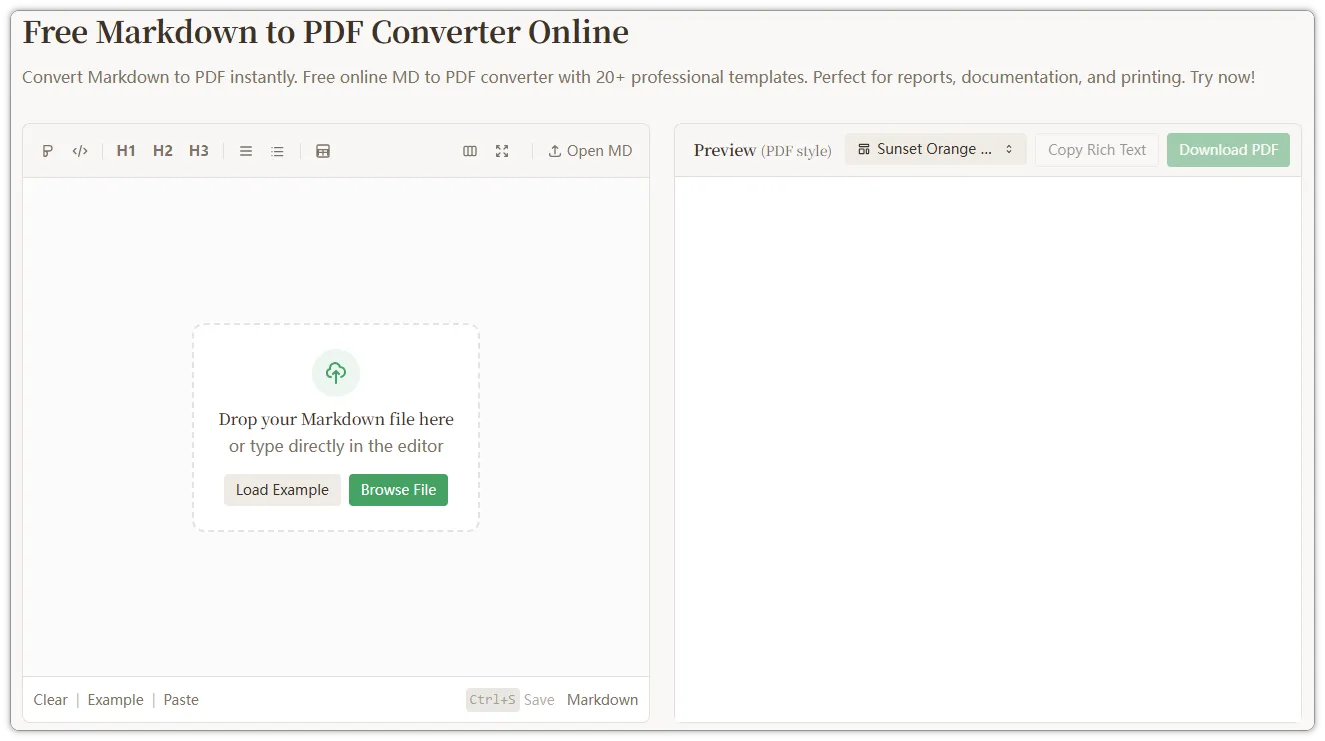 Figure 1: md-to.com editor interface — Markdown input on the left, real-time preview on the right
Step 2: Choose a Template for PDF Output
Click the template name above the preview area to open the style selection panel. Different scenarios call for different templates:
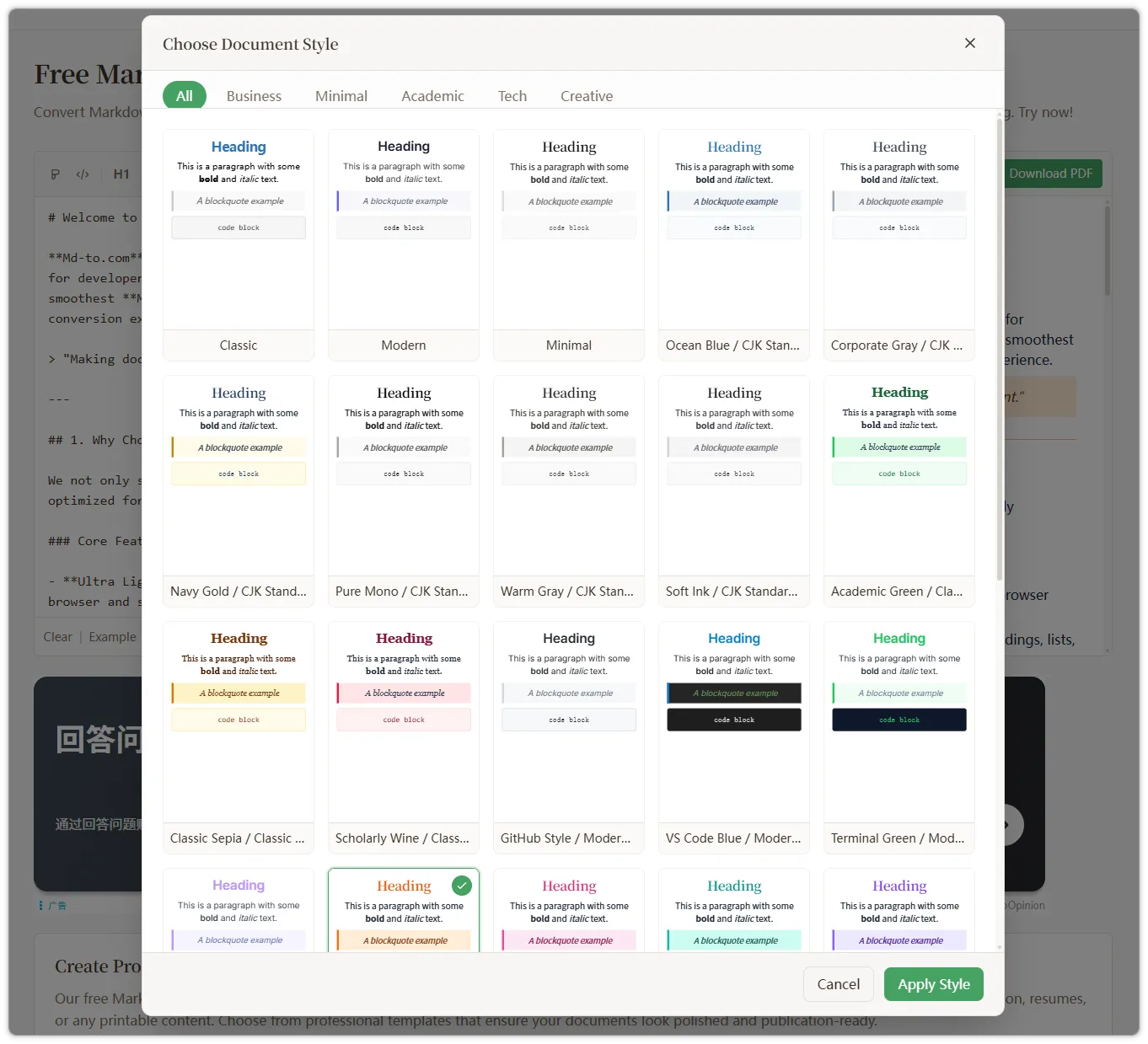 Figure 2: Document Style panel — 20+ templates in 5 categories
- Technical proposals / API docs → GitHub Style, VS Code Blue (best code readability)
- Project reports / business docs → Business Gray, Navy Gold (restrained colors, formal layout)
- Resumes / personal docs → Simple, Pure Black & White (clean and sharp)
- Academic papers / coursework → Academic Green, Academy Wine (scholarly but not dull)
Click “Apply Style” once you’ve found the right one.
Step 3: Download PDF (Key Settings)
Click the “Download PDF” button to open a full-screen preview — this is exactly how the final PDF will look.
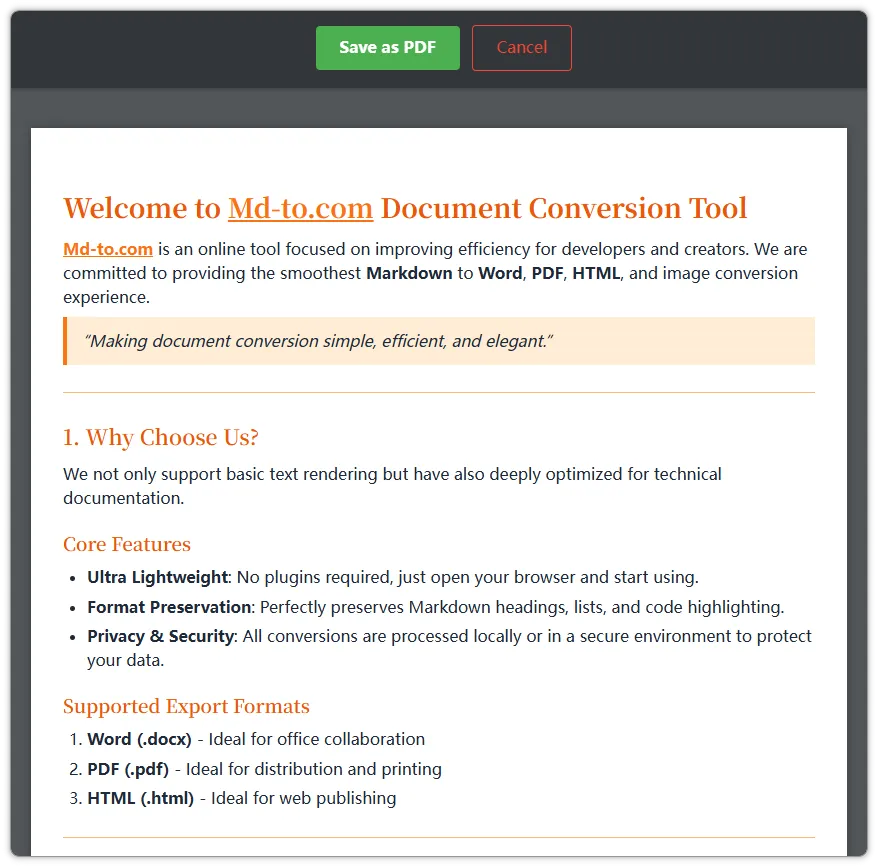 Figure 3: Full-screen PDF preview — exactly as it will look when printed
Once confirmed, click “Save as PDF”. Your browser’s print dialog will appear. A few key settings here:
- Set Destination to “Save as PDF”
- Enable “Background graphics” — this is the most critical step; without it, template backgrounds and code block colors will be lost and the PDF turns plain black and white
- Paper size: choose A4 or Letter depending on your region
- Uncheck “Headers and footers” to remove the URL and date from the top of the PDF
- Click “Save” and you’re done
Why Choose md-to.com for PDF Conversion?
PDF conversion is different from exporting Word or generating images — it has a unique challenge: pagination control. Most tools produce PDFs where code blocks are split in half, headings are orphaned at the bottom of pages, and tables break mid-row. md-to.com solves all of these.
Smart Pagination
This is where md-to.com really shines:
- Code blocks stay intact on the same page — never split by page breaks
- Tables can span pages, with headers repeated on each new page
- Images and blockquotes remain whole — never torn in half
- Headings are never orphaned at the bottom of a page — they always stay with their content
These details require manual LaTeX parameter tweaking in Pandoc, but md-to.com handles them automatically.
Code Highlighting
Full syntax highlighting is preserved across 50+ programming languages. Python, JavaScript, Go, Rust, SQL — whatever the language, your code retains its colors and readability in the PDF.
Math Formulas
LaTeX math formula rendering is fully supported. Both inline and display formulas render correctly, perfect for academic papers and technical documents. Formulas stay intact across page breaks.
Smart Filenames
Downloaded PDFs aren’t all named download.pdf. md-to.com automatically extracts the first heading from your Markdown as the filename. If your document starts with # Project Technical Proposal, the file will be named Project Technical Proposal.pdf.
Long Document Tips
For documents over 10 pages, we recommend:
- Use clear heading hierarchy (H1 → H2 → H3) for better smart pagination
- Consider splitting long code blocks to avoid overly long single blocks
- Keep table column count manageable — very wide tables may get compressed
Common Use Cases
Developer: Technical Proposals & API Docs
Pair your Markdown with the GitHub Style or VS Code Blue template. Code blocks retain full syntax highlighting, and smart pagination keeps your code intact across pages — no more manually tweaking page breaks.
Student: Papers & Course Assignments
The Academic Green or Academy Wine templates give your work a scholarly look. LaTeX math formulas, blockquotes, and nested lists all render correctly — ideal for papers that mix text, formulas, and citations.
Professional: Project Reports & Business Documents
Weekly reports, project summaries, client proposals — the Business Gray or Navy Gold templates deliver a polished, formal PDF. Paste your Markdown, pick a template, and hand your manager a professional document in under a minute.
md-to.com vs Other PDF Solutions
| Aspect | md-to.com | Pandoc + LaTeX | Typora Export |
|---|---|---|---|
| Ease of use | Zero barrier, opens in browser | Requires installation + CLI | Requires desktop app |
| Templates | 20+ beautiful templates | Requires custom LaTeX templates | 5-6 themes |
| Code highlighting | 50+ languages, automatic | Requires listings configuration | Supported |
| Math formulas | LaTeX supported | Native support | Supported |
| Privacy | 100% local processing | Local processing | Local processing |
| Price | Completely free | Free (open source) | Paid $14.99 |
| Pagination | Automatic smart pagination | Manual parameter tuning | Basic pagination |
| Cross-platform | Any browser | Requires environment setup | Win/Mac/Linux |
Key difference: Pandoc is the most powerful but has a steep learning curve, suited for users with LaTeX experience. Typora is an excellent desktop editor but requires payment. md-to.com’s advantage is zero barrier + smart pagination + completely free, perfect for “I just want to quickly convert to a good-looking PDF.”
FAQ
Q: The background colors / code block colors are missing?
Enable “Background graphics” in the browser’s print dialog. This is the most common issue — browsers don’t print background colors by default to save ink. Enabling this option restores all styles.
Q: Can I choose A4 paper?
Yes. In the print dialog, you can select A4, Letter, or other standard sizes.
Q: There’s a URL and date at the top of my PDF?
Uncheck “Headers and footers” in the print dialog settings to remove them.
Q: Can the exported PDF be edited?
PDF is a fixed-layout format and not designed for direct editing. If you need an editable document, use Markdown to Word to export as DOCX.
Q: Will images display correctly?
Publicly accessible image URLs and Base64-encoded images display correctly in the PDF. Local file paths won’t work.
Wrapping Up
md-to.com’s biggest advantage for PDF conversion is smart pagination — code blocks, tables, and images are never crudely split across pages, something most free tools can’t do. Combined with 20+ beautiful templates and 100% local processing, going from Markdown to a professionally formatted PDF is as simple as opening a webpage, pasting your content, and clicking download.
Try it now at md-to.com/markdown-to-pdf/.
Related tools:
- Markdown to Word - Convert MD to editable DOCX
- Markdown to Image - Convert MD to beautiful long images
- Markdown to HTML - Convert MD to HTML code
Related Tools
Convert MD to Word (Docx) Online - Free Markdown to Word
Convert Markdown to Word documents instantly. Free online MD to DOCX converter with real-time preview. Keep formatting intact. No signup required - try now!
Free Word to Markdown Converter - Convert DOCX to MD Online
Convert Word documents to Markdown instantly. Free online DOCX to MD converter preserves headings, tables, lists, and formatting. No signup required - try now!
Convert MD to PDF Online - Free Markdown to PDF Converter
Convert Markdown to PDF instantly. Free online MD to PDF converter with 20+ professional templates. Perfect for reports, documentation, and printing. Try now!
Convert MD to HTML Online - Free Markdown to HTML Converter
Convert Markdown to clean HTML5 code instantly. Free online MD to HTML converter with real-time preview. Copy source code or rich text. No signup required - try now!
Free Markdown to Image Converter - Convert MD to PNG/JPG Online
Free online Markdown to Image converter — also a markdown table to image converter online. Export PNG/JPG with templates, code highlighting. No signup needed!
Free Markdown to LaTeX Converter - Convert MD to TeX Online
Convert Markdown to LaTeX online for free. Transform your MD documents to TeX format for academic papers and technical documents. No registration required!
Online Markdown Editor with Live Preview - Write & Export .md
A lightweight browser-based Markdown editor with split-screen live preview. Compose documents, export .md files, copy formatted rich text, and track word count — all without leaving your browser.