Markdown to Image: How to Create Beautiful Long Images with md-to.com
Want to convert Markdown to beautiful long images? This article details how to use md-to.com to convert MD to PNG/JPG images online. Supports 20+ templates, syntax highlighting, custom sizes, and 100% local processing for privacy protection. Perfect for social media sharing, presentations, and document creation.
Why Do You Need a Markdown to Image Tool?
I’ve encountered this problem before: carefully written Markdown technical documents get completely messed up when shared in WeChat groups. Code highlighting disappears, tables get distorted, and image links break. People in the group would ask “What format is this?” and I’d have to explain one by one that it’s Markdown, but it still looked messy on their phones.
Later, I discovered a solution: using md-to.com to convert Markdown to images. When I tested it, the results were really impressive.
Simply put, it’s like taking a high-resolution photo of your document. But much smarter than screenshots—it supports complete syntax rendering for code, tables, and formulas, plus customizable styles. Once converted to an image, whether you post it on WeChat, Weibo, or technical blogs, the format stays perfect.
Why Choose md-to.com?
There are plenty of Markdown-to-image tools on the market, but I chose md-to.com for several key reasons:
✅ Complete Markdown Support
Unlike Carbon and Ray.so which only handle code snippets, md-to.com supports all Markdown syntax. Headings, lists, quotes, tables, code blocks, math formulas—it can handle documents of any length.
20+ Templates Available
From GitHub style to Dracula purple, covering various scenarios. I use GitHub style for my technical blog and readers say it looks very professional. For social media posts, Modern Minimalist or Sakura Pink look better.
100% Local Processing, Privacy Secure
All conversions happen in the browser with no content uploaded to servers. Sensitive code and proprietary documents can be converted with confidence. This is really important for us developers.
Free, No Registration Required
Open and use it immediately—no registration barriers, no paywalls. Much friendlier than Snappify which requires payment for some features.
Mobile-Friendly
Built-in phone (375px), tablet (768px), and desktop (1200px) sizes with one-click switching. I’ve tried it, and it works great for WeChat Moments.
Extensive Customization Options
Pixel ratio (1x/2x/3x), border styles (gradient/shadow/pattern), background color, padding—adjust however you want to make your images unique.
How to Convert Markdown to Images Online
Let me demonstrate with actual operations, 4 steps to guide you from Markdown to beautiful long images.
Step 1: Input or Paste Markdown Content
Open md-to.com/markdown-to-image/ and you’ll see a clean editor interface.
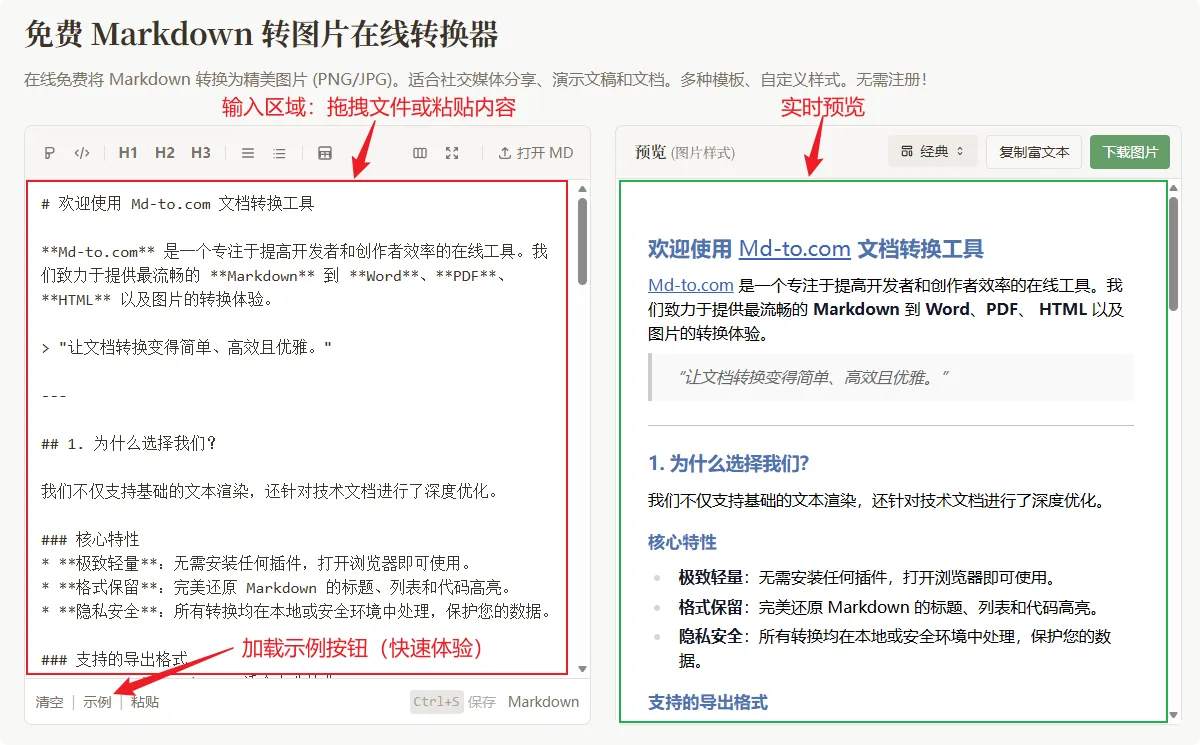 Figure 1: md-to.com editor interface - input area, load sample button, and real-time preview
There are three ways to input Markdown:
- Drag and Drop: Directly drag the .md file into the editor area
- Paste Content: Copy your Markdown text and paste it into the editor
- Load Sample: First time user? Click “Load Sample” to quickly experience the features
The editor supports complete Markdown syntax—headings (#), lists (- or 1.), quotes (>), code blocks (\` “ ), tables (|), links (), images (`)—all work perfectly. The real-time preview on the right lets you see the effects instantly.
Step 2: Select Document Style (Template)
After entering content, it’s time to get creative—choose a template.
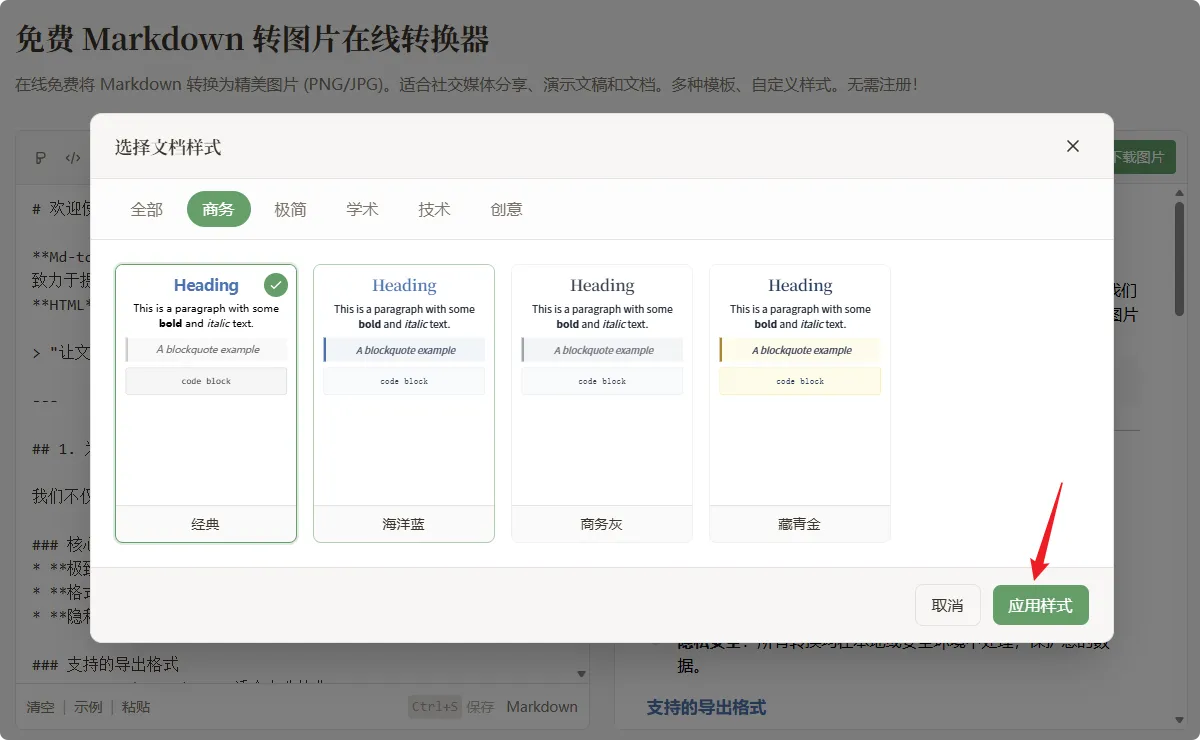 Figure 2: md-to.com template selection interface - 6 major template categories
Click the current document style name at the top of the preview area on the right to open the “Select Document Style” popup. Document styles are divided into 5 major categories:
- Business: Classic, Ocean Blue, Business Gray, Navy Gold (suitable for presentations, product introductions)
- Minimalist: Simple, Pure Black & White, Warm Gray, Soft Ink (suitable for social media, technical blogs)
- Academic: Academic Green, Classic Brown, College Burgundy (suitable for papers, tutorials)
- Technical: Modern, GitHub Style, VS Code Blue, Terminal Green, Dracula Purple (suitable for code, technical documentation)
- Creative: Sunset Orange, Sakura Pink, Ocean Cyan, Lavender Purple, Forest Moss (suitable for creative content, social media)
Recommended Pairings:
- Technical blogs: GitHub Style, VS Code Blue, Dracula Purple
- Weibo/Moments: Modern, Simple, Sakura Pink
- PPT graphics: Business Gray, Navy Gold
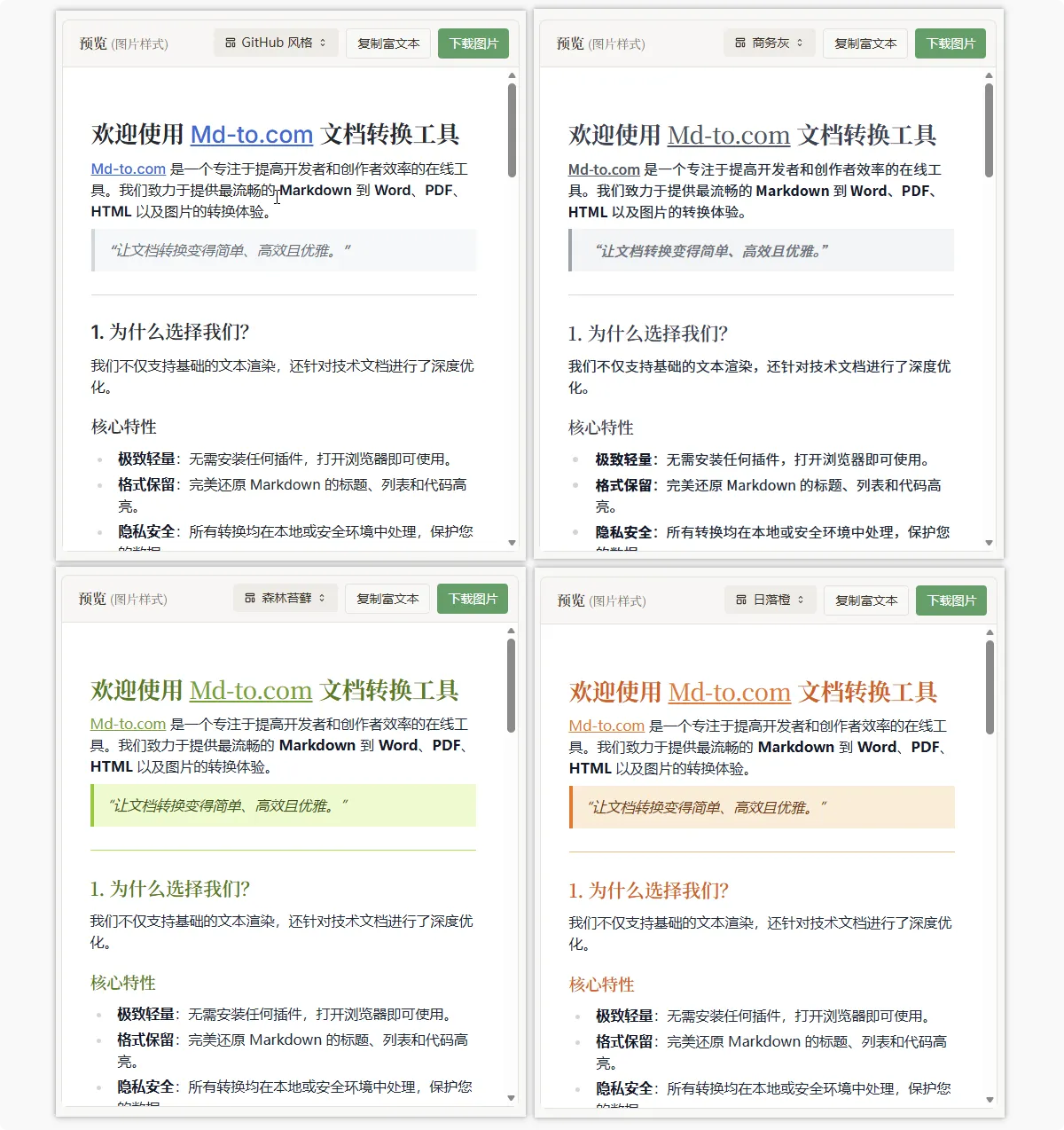 Figure 3: Comparison of four template styles - GitHub Style, Business Gray, Forest Moss, Sunset Orange
After selecting a document style, click “Apply Style” in the bottom right corner, and the editor will refresh the preview in real-time so you can intuitively see the effects. Code highlighting supports 50+ programming languages—Python, JavaScript, Java, Go all display perfectly.
Step 3: Configure Export Settings and Select Border Styles
With the template selected, next comes fine-tuning the export settings. Click the “Download Image” button to open the settings panel.
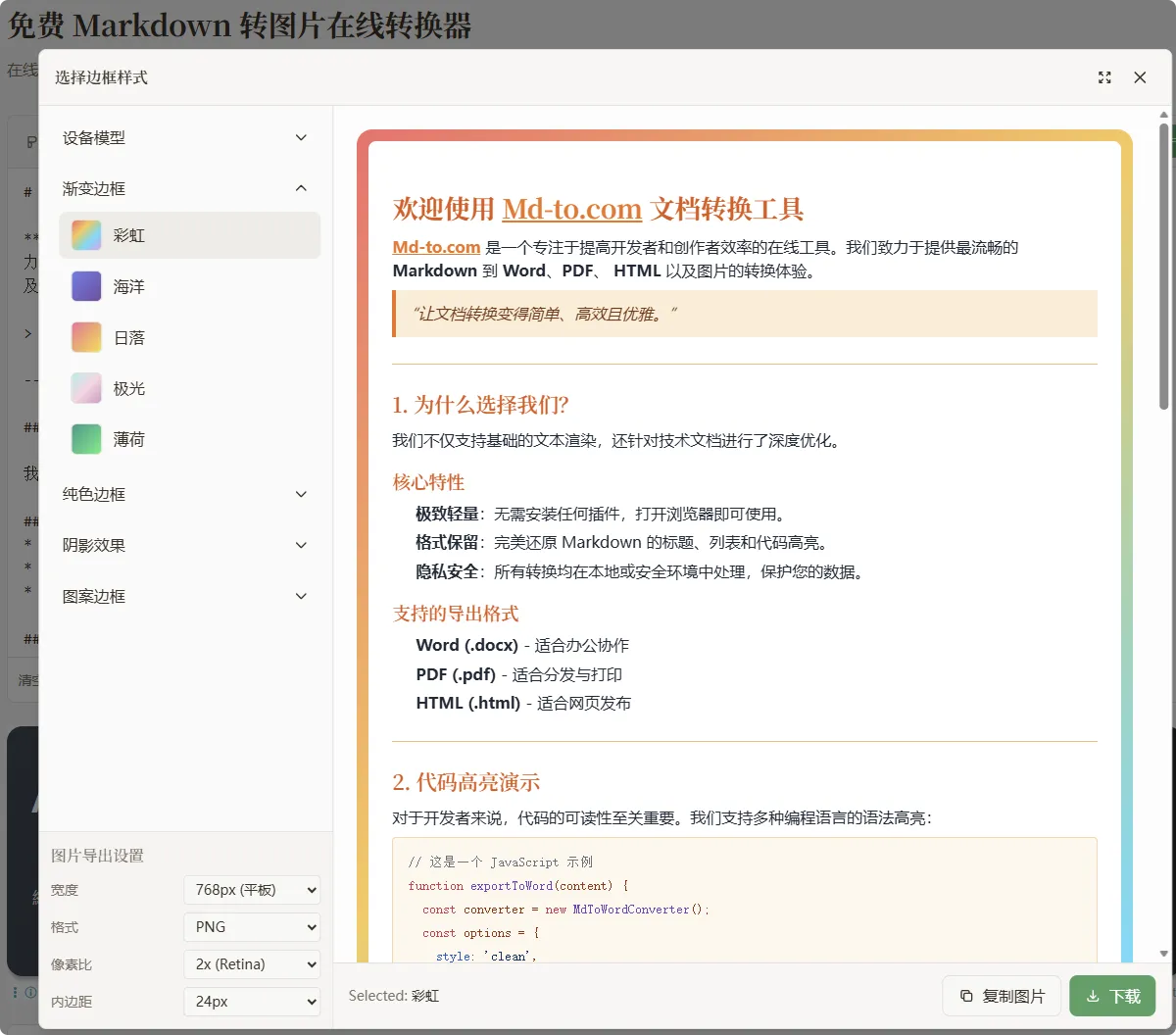 Figure 4: md-to.com export settings interface - size, pixel ratio, and border style configuration
Size Selection (determines image width):
- Phone 375px: Suitable for WeChat, Weibo sharing, good mobile browsing experience
- Tablet 768px: Suitable for long images, tutorials, clearer content
- Desktop 1200px: Suitable for blog graphics, presentations, highest image quality
Pixel Ratio Selection (determines image clarity):
- 1x: Standard quality, smallest file size, suitable for online sharing
- 2x: Retina quality, best balance between clarity and file size ⭐ Recommended
- 3x: Ultra HD, suitable for printing or large screen display
Border Styles (make images more professional):
- Gradient Borders: Rainbow, Ocean, Sunset, Aurora, Mint—suitable for social media, eye-catching
- Solid Borders: No border, dark, light, white, blue, orange—minimalist and professional
- Shadow Effects: Soft shadow, deep shadow, multi-layer shadow, glow—strong 3D effect
- Pattern Borders: Dot matrix, grid—suitable for technical documentation
Other Settings:
- Background Color: White (most common), transparent (for overlay), custom color
- Padding: 16px (compact), 24px (standard), 32px (comfortable), 48px (spacious)
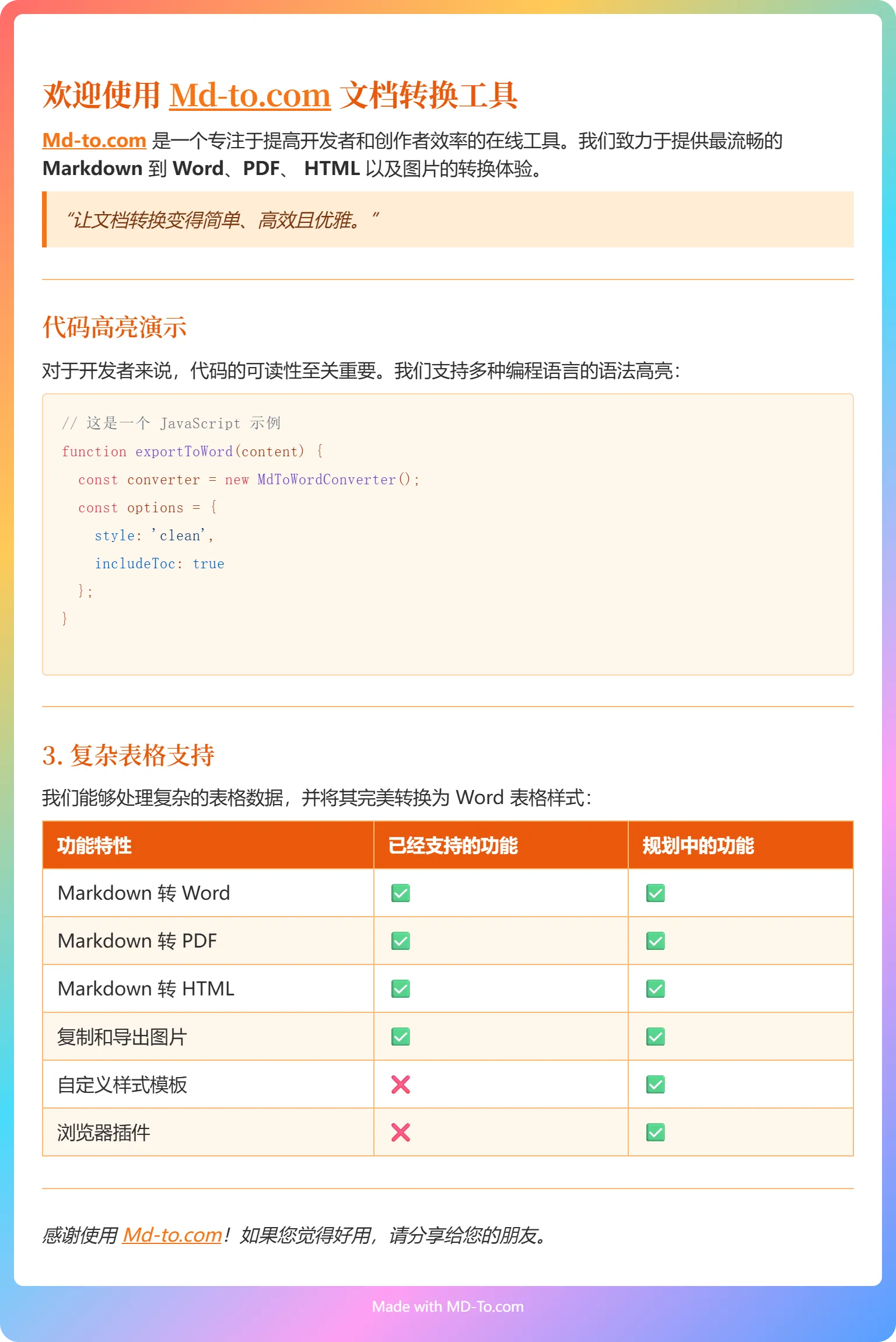 Figure 5a: Rainbow gradient border effect
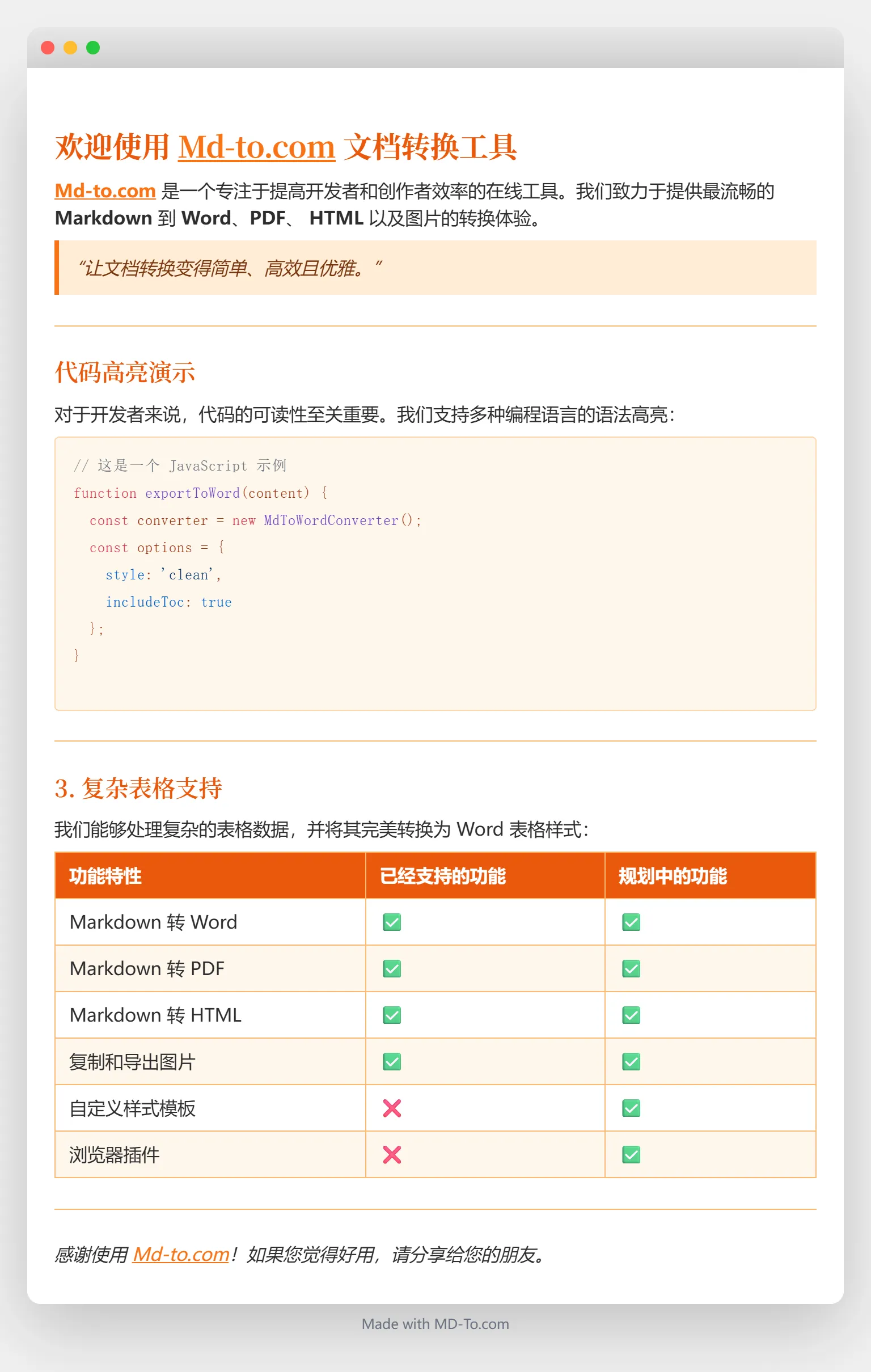 Figure 5b: Soft shadow border effect
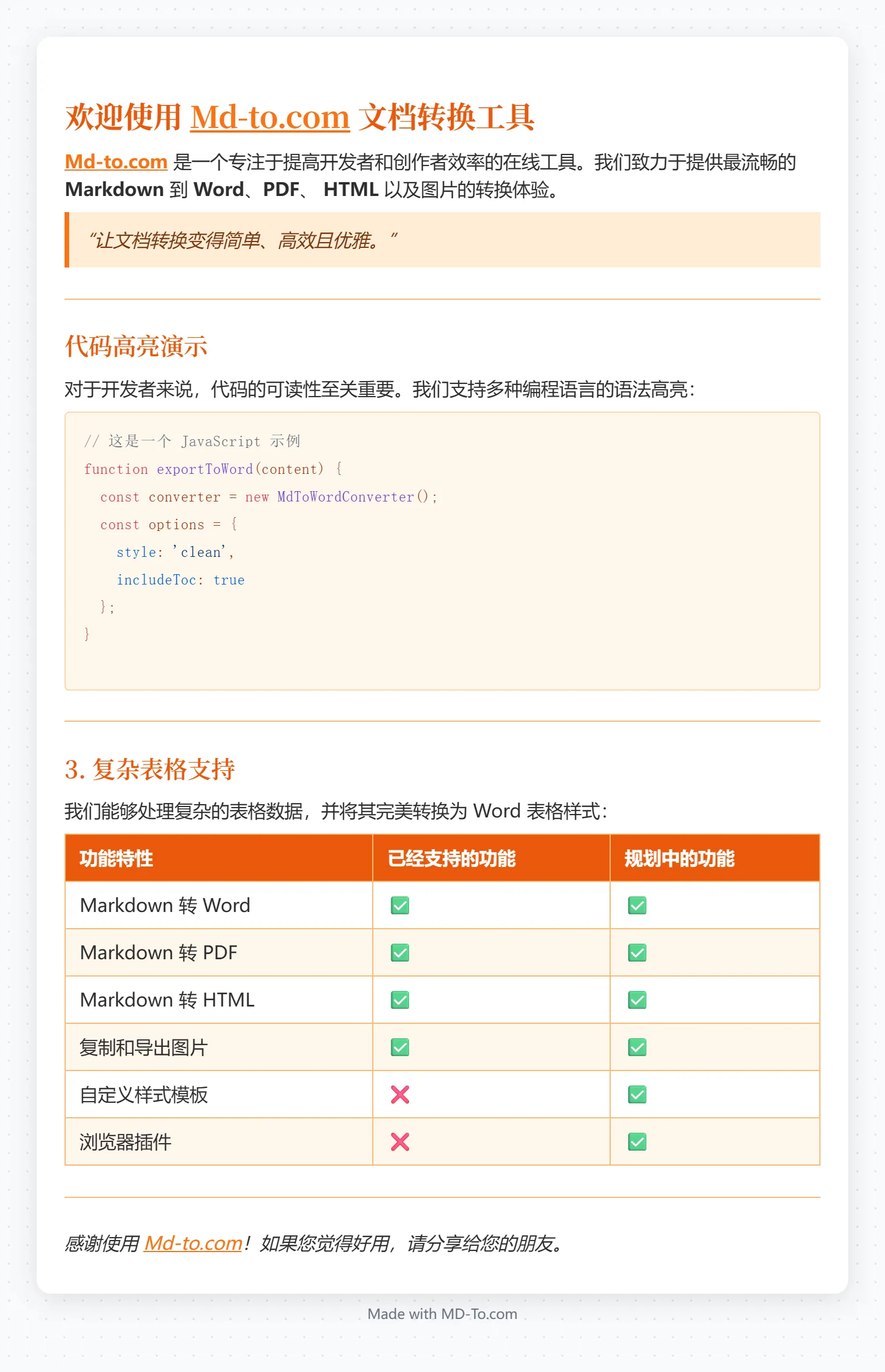 Figure 5c: Dot matrix pattern border effect
Step 4: Download or Copy Image
Once settings are complete, you’re ready to export.
One-Click Copy: Click “Copy Image” to copy directly to clipboard, then paste into WeChat, Weibo, PPT—super convenient.
Download Image: Choose PNG or JPG format to save locally. Differences between the two formats:
- PNG: Supports transparent background, suitable for code screenshots, document graphics
- JPG: Smaller file size, suitable for social media sharing
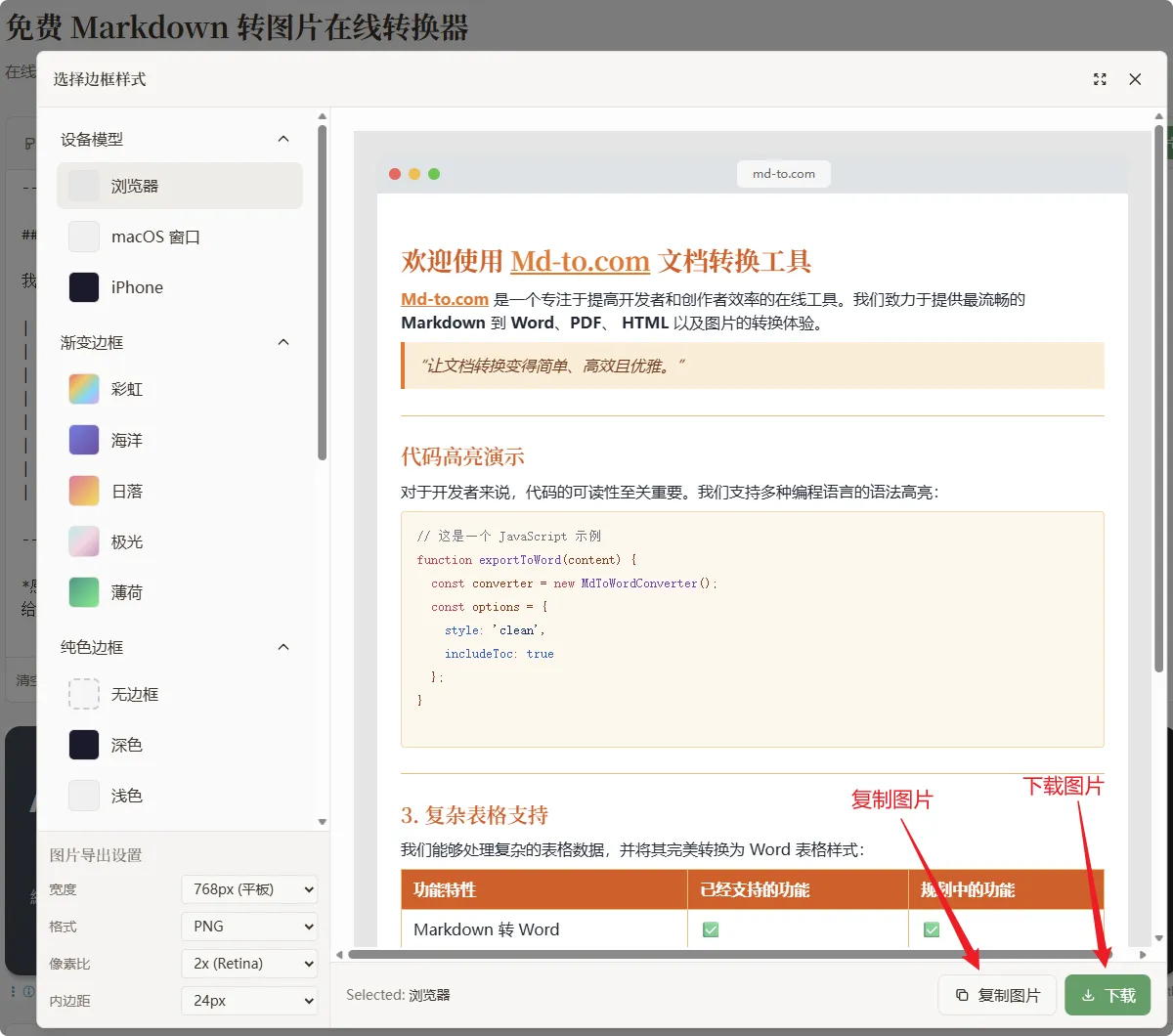 Figure 6: md-to.com download options - copy image and download PNG/JPG
Conversion is very fast. I tried a 2000-word article and it generated in about 20-30 seconds.
Usage Scenarios and Application Cases
md-to.com is not just a conversion tool—it’s a powerful asset for improving content quality. Here are some scenarios I frequently use.
Social Media Sharing
When I share technical notes on Weibo/WeChat/X, directly pasting code always messes up the format? Using md-to.com to convert to an image keeps the format perfect and can add a rainbow border to catch attention.
Recommended Settings:
- Size: 375px (phone) or 768px (tablet)
- Template: Modern, Simple, Sakura Pink
- Border: Rainbow gradient, Sunset Orange
- Pixel ratio: 2x
Technical Blog Graphics
When writing technical blogs, code graphics are important. Regular screenshots too crude? Using md-to.com with GitHub Style or VS Code Blue instantly maximizes professionalism.
Recommended Templates: GitHub Style, VS Code Blue, Dracula Purple
Open source project READMEs can also be beautified with this tool—feature introductions and usage guides made into images are more attractive than plain text.
Presentation Creation
When creating technical sharing PPTs, using md-to.com to generate code graphics is much clearer than directly pasting code screenshots.
Recommended Settings:
- Size: 1200px (desktop)
- Pixel ratio: 3x (ultra HD)
- Template: Business Gray, Navy Gold
- Border: Soft shadow
md-to.com vs Other Tools Comparison
To help you choose the most suitable tool, I’ve compared several mainstream Markdown/code-to-image tools.
vs Carbon (Code Screenshot Tool)
Carbon is the most well-known code screenshot tool, but positioned differently from md-to.com.
| Dimension | md-to.com | Carbon |
|---|---|---|
| Markdown Support | ✅ Complete (tables, lists, formulas) | ⚠️ Code snippets only |
| Template Count | ✅ 20+ beautiful templates | ✅ Multiple themes |
| Pixel Ratio Selection | ✅ 1x/2x/3x | ❓ Unclear |
| Border Styles | ✅ Rich (gradient/shadow/pattern) | ✅ Basic borders |
| Privacy Protection | ✅ 100% local processing | ⚠️ Some features require upload |
| Price | ✅ Completely free | ✅ Completely free |
| Use Cases | Markdown documents, code | Code snippets |
Core Difference: Carbon is an excellent code screenshot tool, but only supports code snippets, not Markdown’s complete syntax (like tables, lists, formulas). If you need to convert long documents or complex content, md-to.com is more suitable.
vs md2image.com (Markdown Tool)
md2image.com is a dedicated Markdown-to-image tool, but has functionality gaps compared to md-to.com.
| Dimension | md-to.com | md2image.com |
|---|---|---|
| Template Count | ✅ 20+ beautiful templates | ⚠️ Fewer |
| Customization Options | ✅ Rich (pixel ratio/border/shadow) | ⚠️ Basic |
| Pixel Ratio Selection | ✅ 1x/2x/3x | ❌ Not supported |
| Border Styles | ✅ Gradient/solid/shadow/pattern | ⚠️ Limited |
| Local Processing | ✅ 100% local | ❓ Unclear |
| Price | ✅ Completely free | ✅ Free |
Core Difference: md-to.com has more templates, richer customization options, and more refined border styles (gradient, shadow, pattern). If you pursue visual effects and personalization, md-to.com is superior.
Quick Selection Guide
- ✅ Need complete Markdown support → Choose md-to.com
- ✅ Need beautiful templates and styles → Choose md-to.com
- ✅ Only need code snippets → Carbon, Ray.so are also good choices
- ✅ Value privacy protection → md-to.com (100% local processing)
Frequently Asked Questions (FAQ)
What is the resolution of the generated images?
By default, 2x pixel ratio (Retina quality) is used to ensure sharp clarity on high DPI displays and in print. You can also choose 1x (standard quality) or 3x (ultra HD) in export settings. Width options include three presets: 375px (phone), 768px (tablet), 1200px (desktop).
Should I choose PNG or JPG format?
It depends on your use case. PNG is suitable for screenshots, text-heavy graphics, or when transparent background is needed. JPG is suitable for content with more photos, or when smaller files are needed—JPG generates smaller files, perfect for social media sharing. Both formats maintain high-quality output.
Can I customize the image appearance?
Yes! You can customize width (phone/tablet/desktop presets), pixel ratio (1x-3x), background color (white, transparent, or custom), padding (16px-48px), and choose from 20+ professional templates. Changes can be previewed in real-time before downloading.
Is my content safe when converting to images?
Completely safe. All image generation is done using JavaScript locally in the browser. No Markdown content is uploaded to any server. Your data never leaves your device, making it perfect for converting sensitive or proprietary content.
What Markdown syntax is supported?
✅ Complete Markdown support: headings, lists, quotes, code blocks, tables, links, images, and more. Code highlighting supports 50+ programming languages. Math formulas are supported in some templates.
Summary
md-to.com is a powerful Markdown-to-image tool with core advantages including: complete Markdown support, 20+ beautiful templates, 100% local processing for privacy protection, completely free with no registration required, and mobile-friendly. Whether for technical blog graphics, social media sharing, presentation creation, or open source project README beautification, it handles all with ease.
Visit md-to.com/markdown-to-image/ to experience it now!
Related Tool Recommendations:
- Markdown to PDF - Convert MD to PDF documents
- Markdown to Word - Convert MD to DOCX documents
- Markdown to HTML - Convert MD to HTML code
Resources:
Related Tools
Convert MD to Word (Docx) Online - Free Markdown to Word
Convert Markdown to Word documents instantly. Free online MD to DOCX converter with real-time preview. Keep formatting intact. No signup required - try now!
Free Word to Markdown Converter - Convert DOCX to MD Online
Convert Word documents to Markdown instantly. Free online DOCX to MD converter preserves headings, tables, lists, and formatting. No signup required - try now!
Convert MD to PDF Online - Free Markdown to PDF Converter
Convert Markdown to PDF instantly. Free online MD to PDF converter with 20+ professional templates. Perfect for reports, documentation, and printing. Try now!
Convert MD to HTML Online - Free Markdown to HTML Converter
Convert Markdown to clean HTML5 code instantly. Free online MD to HTML converter with real-time preview. Copy source code or rich text. No signup required - try now!
Free Markdown to Image Converter - Convert MD to PNG/JPG Online
Free online Markdown to Image converter — also a markdown table to image converter online. Export PNG/JPG with templates, code highlighting. No signup needed!
Free Markdown to LaTeX Converter - Convert MD to TeX Online
Convert Markdown to LaTeX online for free. Transform your MD documents to TeX format for academic papers and technical documents. No registration required!
Free Markdown to Text Converter - Convert MD to Txt Online
Convert Markdown to clean plain text online for free. Remove all formatting, headings, links, and syntax instantly. Perfect for emails, forms, and SMS. No registration required!