How to Convert a PDF to a Markdown (.md) File — No Upload, 3 Steps
I keep running into more and more situations where I need to turn a PDF into a Markdown document:
- Feeding AI tools: Before handing a contract, manual or paper to ChatGPT, Claude, Gemini or a local knowledge base (RAG), clean Markdown is easier to work with than raw PDF text — and uses fewer tokens;
- Migrating docs: Moving old PDF specs and manuals into GitHub, a wiki, Obsidian or Notion;
- Editing: You only have the PDF, not the source file, and need to change a few sections before exporting again.
md-to.com’s PDF to Markdown converter is built for exactly this: free, no signup, and your PDF is processed entirely in your browser — it is never uploaded to any server. It works best on text-based PDFs (exported from Word, Google Docs, Markdown and similar tools) and extracts body text, headings and lists.
How to Convert PDF to Markdown — 3 Steps
Step 1: Upload Your PDF
Open md-to.com/pdf-to-markdown/ and drag your .pdf file into the upload area, or click Select File. Conversion starts automatically.
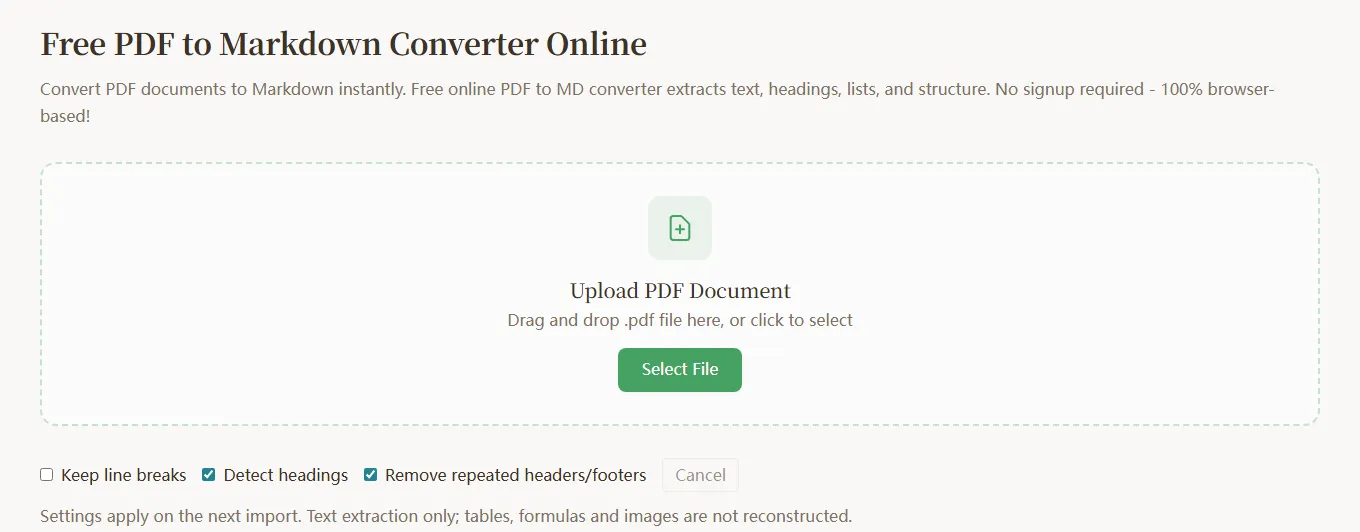
Below the upload area you’ll find three options: Keep line breaks, Detect headings, and Remove repeated headers/footers. Note that settings apply on the next import, so pick them before you upload. If you change an option afterward, simply select the file again. See below for what each option does.
While converting, the page shows “Processed x/y pages”. For a long PDF, you can click Cancel at any time.
Step 2: Review and Edit the Output
When conversion finishes, the editable Markdown source appears on the left and a live preview on the right.
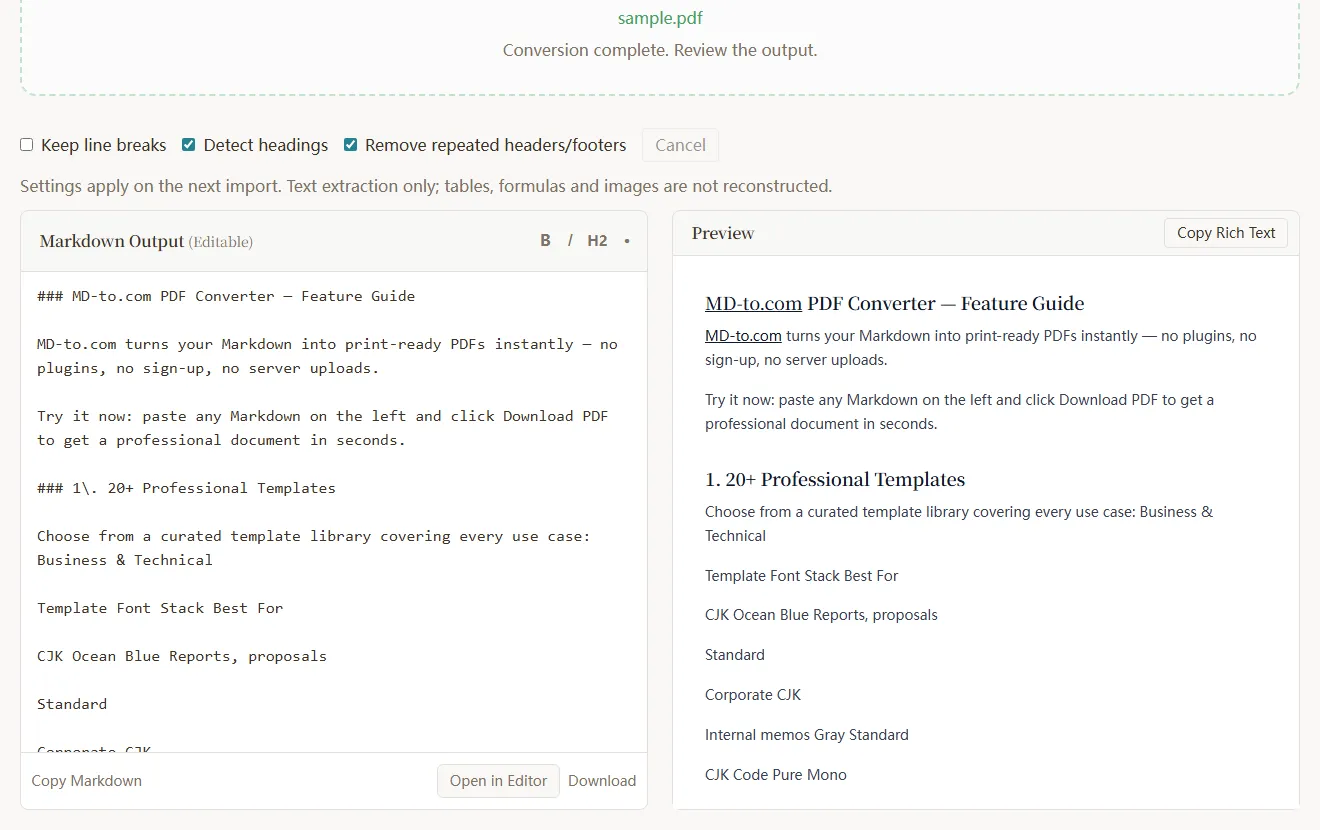
The status line says “Conversion complete. Review the output.” — and it means it. A PDF is essentially a set of instructions for drawing text at fixed positions on a page. It doesn’t record “this is a heading” or “this is a table”, so every PDF converter has to infer structure from font sizes and positions. Spending a minute or two scanning the result before you export is the best investment you can make.
The toolbar above the editor has Bold, Italic, H2 and list buttons for quick fixes. If some pages had no extractable text, or if header/footer lines were removed, the status line lists the page numbers and line counts so you can double-check.
Step 3: Copy or Download
Once you’re happy with the result, pick what fits your workflow:
- Copy Markdown: Copy the source and paste it into GitHub, Obsidian, an AI chat, and so on
- Copy Rich Text: Copy the formatted preview and paste it into Word, Google Docs or Notion with headings and lists intact
- Download: Save a
.mdfile with the same name as your PDF - Open in Editor: Jump to the Markdown editor with your content to keep editing, or convert it on to Word, PDF or HTML
Which Options Should You Use?
| Option | Default | What it does | When to change it |
|---|---|---|---|
| Keep line breaks | Off | When off, sentences that wrap across lines in the PDF are joined into complete paragraphs. When on, every line break from the PDF is kept | Turn on for poetry, lyrics, addresses, or line-by-line lists where the breaks carry meaning |
| Detect headings | On | Infers headings from font size: text noticeably larger than body text becomes #, ## or ### | Turn off if large emphasized text in the body is being mistaken for headings |
| Remove repeated headers/footers | On | Removes text that repeats at the top or bottom edge of most pages, plus page numbers that match the page | Turn off if your headers or footers contain information you need (e.g. a different chapter name on each page) |
How Does It Turn a PDF into Markdown?
Knowing how it works tells you which parts of the output you can trust and which to double-check.
Paragraph reflow: The converter reads the coordinates of every text fragment. It first joins fragments at the same height into lines, then uses line spacing and indentation to decide which lines belong to the same paragraph. English and Korean keep the spaces between words; Chinese and Japanese characters are joined without extra spaces.
Heading detection: It first finds the most common font size in the document and treats it as the body size. A line more than about 1.3× the body size becomes a heading — ## at 1.6× and # at 2×. In other words, headings are detected by font size only: a subheading that’s merely bold at body size is treated as regular text.
List detection: Lines starting with •, -, *, + and similar bullets become unordered lists; lines starting with 1. or 1) become ordered lists. When a list item wraps, the hanging-indent continuation lines are merged back into the same item.
Header and footer removal: Text that appears at the top or bottom edge of roughly 60% or more of the pages is treated as a running header or footer and removed. A page number is only removed when it matches the actual page, so years, amounts and other numbers near the page edge are kept.
Escaping special characters: Characters like *, # and $ that appear in the PDF text get a backslash so Markdown doesn’t treat them as formatting. That’s why you may see something like ### 1\. Introduction in the source — the backslash stops “1.” from becoming an ordered list. It renders normally in the preview.
Real-World Test: A 5-Section Product Guide PDF
We tested the converter with an English product guide PDF containing a title, body text, lists, two tables, two code blocks and math formulas. Here’s how it went:
| Content | Result | Notes |
|---|---|---|
| Body paragraphs | ✅ | All wrapped lines joined into complete paragraphs |
| Lists | ✅ | Bulleted lists converted correctly to - lists |
| Section headings | ✅ | Headings like “1. 20+ Professional Templates” were detected |
| Subheadings | ⚠️ | Subheadings close to body size (e.g. “Heading Hierarchy”) were merged into paragraphs |
| Tables | ❌ | Flattened into lines of text; columns in multi-line cells can end up out of order |
| Code blocks | ❌ | Line numbers mixed into the code, indentation lost, no ``` fences |
| Formulas | ❌ | Not rebuilt as LaTeX |
Take the tables as an example. In the PDF, it had three columns — Template / Font Stack / Best For. After conversion, it looks like this:
Template Font Stack Best For

CJK Ocean Blue Reports, proposals

Standard
Here’s what happened to the code blocks:
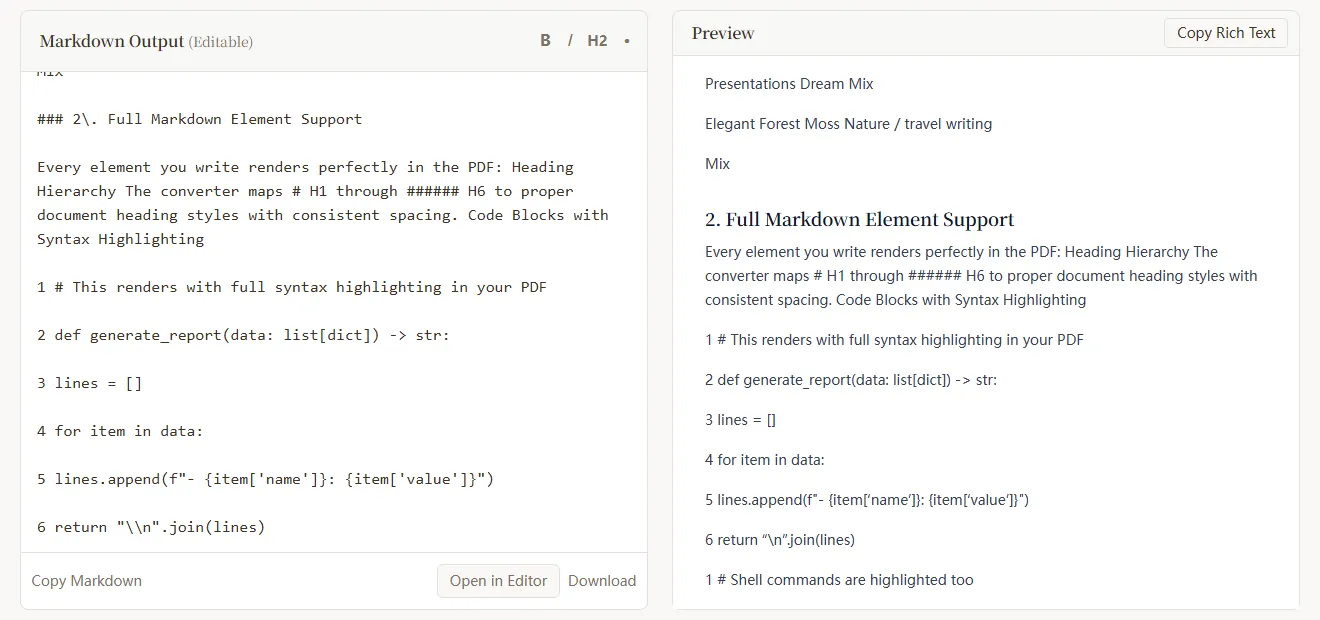
The takeaway: text-first content — paragraphs, headings and lists — is largely ready to use; tables, code and formulas need manual cleanup. Text-based reports, manuals, contracts and articles usually come out ready to use; for technical documents full of tables and code, budget some time for cleanup.
Tips for Cleaning Up the Output
1. Fix the heading levels
Because levels are inferred from font size, you may end up with everything as ### — for example, when the document title and section headings use similar sizes. Use find and replace to change the title to # and sections to ##.
2. Rebuild tables
The easiest route: go back to the PDF, copy the table into Excel or Google Sheets, tidy it up, and save it as CSV. Then use CSV to Markdown Table to generate proper table syntax and replace the flattened lines.
3. Fix code blocks
Wrap the code in ``` fences. If the code has line numbers, select those lines in an editor that supports regex (like VS Code) and replace ^\d+ with nothing to strip them. You’ll need to restore indentation by comparing against the PDF.
4. Add back formulas and images
Rewrite formulas in LaTeX using $...$ (inline) or $$...$$ (on their own line). Save images from the PDF separately and insert them with .
When Should You Use a Different Tool?
We’d rather you use the right tool than force ours to fit. In these cases, md-to.com isn’t the best choice:
| Your PDF | The problem | Recommended approach |
|---|---|---|
| Scanned documents or phone photos saved as PDF | The pages contain only images, with no extractable text (the converter will report “No extractable text”) | You need OCR. Try open-source tools with OCR support such as MinerU or Marker. Alternatively, add a text layer with a tool like OCRmyPDF first, then import it into md-to.com (results depend on OCR quality) |
| Academic papers heavy on tables and formulas | You need table structure and LaTeX formulas | MinerU, Marker and Docling can recognize tables and formulas and suit papers and financial reports. They require a local Python environment, and some models work best with a GPU |
| Two-column or multi-column layouts | md-to.com reads each line left to right, so text from the left and right columns at the same height gets joined into one line | Same as above — choose a tool with layout analysis |
| Batch-converting hundreds of files | A web tool handles one file at a time | Write a script with Python libraries such as MarkItDown or Docling |
| Text-based PDFs with sensitive content where you just need the text fast | You don’t want to install anything or upload the file | md-to.com: open the page and go — the file never leaves your browser |
A side note: the popular conversion tool Pandoc does not accept PDF as an input format, so pandoc input.pdf -o output.md won’t work.
FAQ
Q: Can I convert a scanned PDF?
Not directly. The text in a scanned PDF is actually an image and needs OCR. The converter will report “No extractable text” and list the pages without text. See the previous section for solutions.
Q: Can I convert a password-protected PDF?
PDFs that require a password to open can’t be read; the converter will ask you to use an unencrypted copy. Open the file in a PDF reader with the password, then use “Save As” or “Print to PDF” to create an unencrypted version.
Q: Does it handle Chinese, Japanese and Korean PDFs?
Yes. Chinese and Japanese text gets special handling: when lines are joined, no spaces are inserted between characters or before CJK punctuation. Korean, which separates words with spaces, keeps its word spacing just like English. One caveat: if a Korean PDF breaks lines in the middle of words (common in PDFs saved from a browser), a stray space may appear where the line broke.
Q: Is my file uploaded anywhere?
No. Reading and converting the PDF happens entirely in JavaScript in your browser (powered by PDF.js), so the file never leaves your device. That makes it suitable for contracts, internal reports and other sensitive documents.
Q: Are images and hyperlinks preserved?
No. Only text is extracted. Save images separately and insert them manually; link text is kept as plain text.
Q: Can I convert the Markdown to Word afterward?
Yes. Click Open in Editor, or paste the content into Markdown to Word, pick a template, and export a .docx.
Wrapping Up
For text-based PDFs, md-to.com’s PDF to Markdown converter turns body text, headings and lists into clean Markdown in seconds. It joins wrapped lines, strips running headers and page numbers, and never lets your file leave the browser. Tables, code and formulas take a few minutes of manual cleanup; for scanned documents and complex academic layouts, specialized tools like MinerU or Marker are a better fit.
Try it now at md-to.com/pdf-to-markdown/.
Related tools:
- Word to Markdown — If you have the
.docxsource, it preserves tables and formatting more completely - HTML to Markdown — Convert web page content to Markdown
- CSV to Markdown Table — Rebuild tables lost in PDF conversion
- Markdown to PDF — Export your edited Markdown back to a polished PDF
Related Tools
Convert MD to Word (Docx) Online - Free Markdown to Word
Convert Markdown to Word documents instantly. Free online MD to DOCX converter with real-time preview. Keep formatting intact. No signup required - try now!
Free Word to Markdown Converter - Convert DOCX to MD Online
Convert Word documents to Markdown instantly. Free online DOCX to MD converter preserves headings, tables, lists, and formatting. No signup required - try now!
Convert MD to PDF Online - Free Markdown to PDF Converter
Convert Markdown to PDF instantly. Free online MD to PDF converter with 20+ professional templates. Perfect for reports, documentation, and printing. Try now!
Free PDF to Markdown Converter - Convert PDF to MD Online
Convert PDF documents to Markdown instantly. Free online PDF to MD converter extracts text, headings, lists, and structure. No signup required - 100% browser-based!
Free HTML to Markdown Converter - Convert HTML to MD Online
Convert HTML to Markdown instantly. Free online HTML to MD converter preserves links, images, tables, and formatting. No signup required - try now!
Free Markdown to LaTeX Converter - Convert MD to TeX Online
Convert Markdown to LaTeX online for free. Transform your MD documents to TeX format for academic papers and technical documents. No registration required!
Free Markdown to Text Converter - Convert MD to Txt Online
Convert Markdown to clean plain text online for free. Remove all formatting, headings, links, and syntax instantly. Perfect for emails, forms, and SMS. No registration required!
Free CSV to Markdown Table Converter - Convert CSV Online
Convert CSV data to Markdown tables online for free. Instant conversion with automatic column alignment. Perfect for GitHub READMEs, documentation, and blogs. No registration required!
Free Markdown Table to CSV Converter - Extract Table Data Online
Convert Markdown tables to CSV format online for free. Extract table data for spreadsheets and databases. Instant conversion, no registration required!
Free JSON to Markdown Table Converter - Convert JSON Online
Convert JSON arrays to Markdown tables online for free. Instant conversion with automatic formatting. Perfect for API data, documentation, and reports. No registration required!
Online Markdown Editor with Live Preview - Write & Export .md
A lightweight browser-based Markdown editor with split-screen live preview. Compose documents, export .md files, copy formatted rich text, and track word count — all without leaving your browser.